Quick tip and resource. Get a SharePoint DeltaLink in n8n.
TL;DR
- A Delta Link is a url to call via API that tells you what file changes have occured in your SharePoint Folder
- There isn’t a nice way to get one in n8n
- How to use a DeltaLink.
- There’s an n8n json blueprint for you!
Background
I have recently been developing my AI skills, particularly with AI in workflow and RAG ingestion. This means that I have been doing a lot in n8n. Which I think is an incredibly useful tool. I work a lot in sharepoint (both professionally and personally - but I will call out here that I am making use of my personal sharepoint) and n8n doesn’t have a good trigger node - so this is a work around for that.
A Delta Link is a url that is designed to be called by API (you need permissions to the Microsoft Graph API to call it) and it returns changes to the file from when the url was first generated. It is focused on one folder - but it’s pretty cool. It let’s you detect if there have been any updates, additions or deletions, and then you can handle it using the file ID or Hash that the response provides. Which is great for having a RAG ingestion pipline that updates automatically.
In the response of the Delta Link is a new DeltaLink for the new state of your SharePoint folder. Which means you will only ever detect new changes as long as you use the updated link.
(Also just going to call it out right now - I don’t know if it’s DeltaLink or Delta Link or what the capitalization should be… but it’s all the same thing.)
One more note before we jump in. You need Microsoft Sharepoint OAuth2 API credentials in n8n to do this. I set mine up with a community node (n8n-nodes-microsoft-sharepoint) - and just reused it.
Get a Delta Link
So how do we get a Delta Link? Easy! Just call this endpoint: https://graph.microsoft.com/v1.0/drives/{DRIVE_ID}/items/{Folder_PATH_ID}/delta
That begs the question, how do I get my DRIVE_ID and Folder_PATH_ID? Even Easier! just call these endpoints:
Folder_PATH_ID: https://graph.microsoft.com/v1.0/drives/{DRIVE_ID}//root:{Folder_Path}
DRIVE_ID: https://graph.microsoft.com/v1.0/sites/{SITE_ID}/drives (If you have multiple drives you will have to pick one)
Another question is then begged. How do I get my SITE_ID. That is the Easiest of all. Just call this endpoint:
SITE_ID: https://graph.microsoft.com/v1.0/sites/{subdomain}.sharepoint.com:/sites/{Site Name}
I know what you are going to ask. “What’s my subdomain?” “What’s my site name?” “What’s my folder path?”
I don’t know - and only you can find out.
This workflow does it ‘Almost’ automatically once you fill in your info.
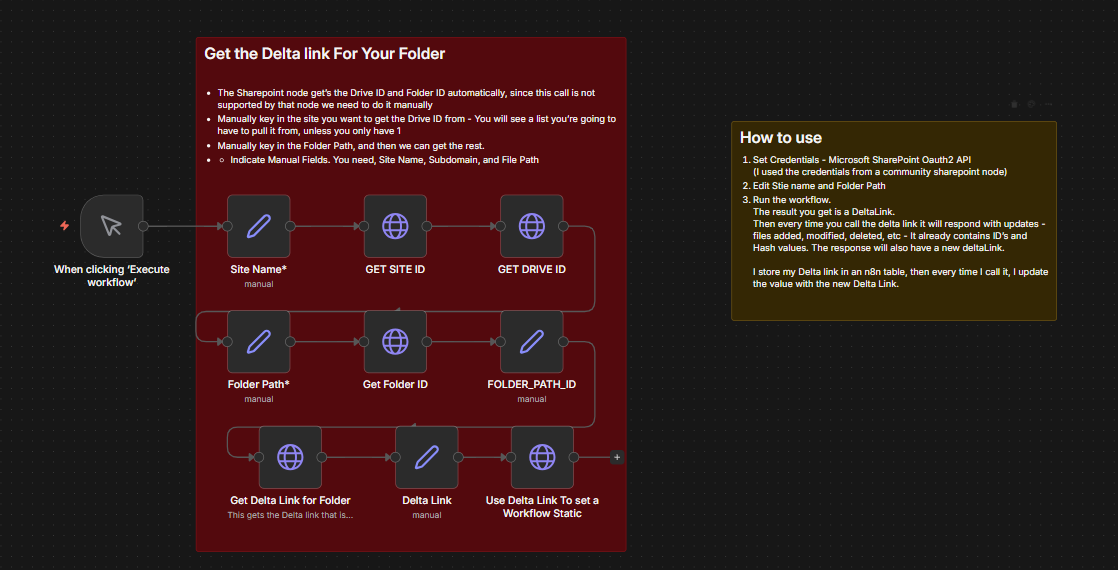
I say almost because if you have multiple drives on your site it won’t work as nicely.
Subdomain
Your Subdomain is what your .sharepoint.com is proceeded by. If your business is bestballoons.com (I’m not checking if that’s a real thing), then your sharepoint subdomain will probably be ‘bestballoons’ - but you could have set it up to be anything. Just go to sharepoint and look at your url. It should have {subdomain}.sharepoint.com
Site name
The is what the sharepoint site is called. It will also be in the URL but it will be on the Left Hand Side if you click on the globe icon to see what sites are available to you. I’m sorry I can’t offor more guidance, but you should be able to see some options with this call: https://graph.microsoft.com/v1.0/sites?search=*
You don’t need parameters, and if you are fine manually looking through it you can get your site id from this as well.
Folder Path
This one is just what it sounds like. The folder path you use to get to the folder you want.
example: I want to track changes in my folder BLUEBALOONS When I’m in my site Drive (The documents folder), I click on BALOONCOLORS then BLUEBALOONS is a subfolder. So my path is /BALOONCOLORS/BLUEBALOONS
How to Use a Delta Link
Using the Delta Link is probably the simplist bit. You just have a GET request to the url with your Sharepoint credentials.
This is a whole seperate section because you need to have the Delta Link saved to a permenate place to be pulled and replace. I use the n8n DataTable. I have also used SharePoint Lists - but authentification can get wierd with calling it so often. So after you call your Delta Link, replace the one in your store with the new Delta Link that is returned.
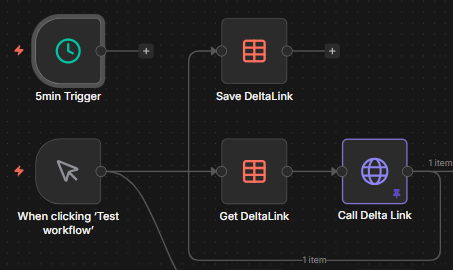
Also I have this triggering manually, but you can set up a schedule trigger. I wouldn’t have anything closer together than one minute triggers. I would recommend something more in the range of every 5 minutes so SharePoint always has time to sync.
n8n Template
I put it at the bottom so hopefully you read the whole thing.
Let me know if you want any help.
Signing off, Best wishes
Gunnar J Newell
Christ is Lord!